Waterfall
Concept
The waterfall view displays communications as horizontal time bars on a shared timeline.
Each bar represents one communication. Its horizontal position shows when it started; its width shows how long it lasted. This makes it easy to spot slow requests, concurrent bursts, and idle periods at a glance.
The waterfall is available all L7 communications views.
It has two principal modes:
- flat view
- lane grouping
The flat view
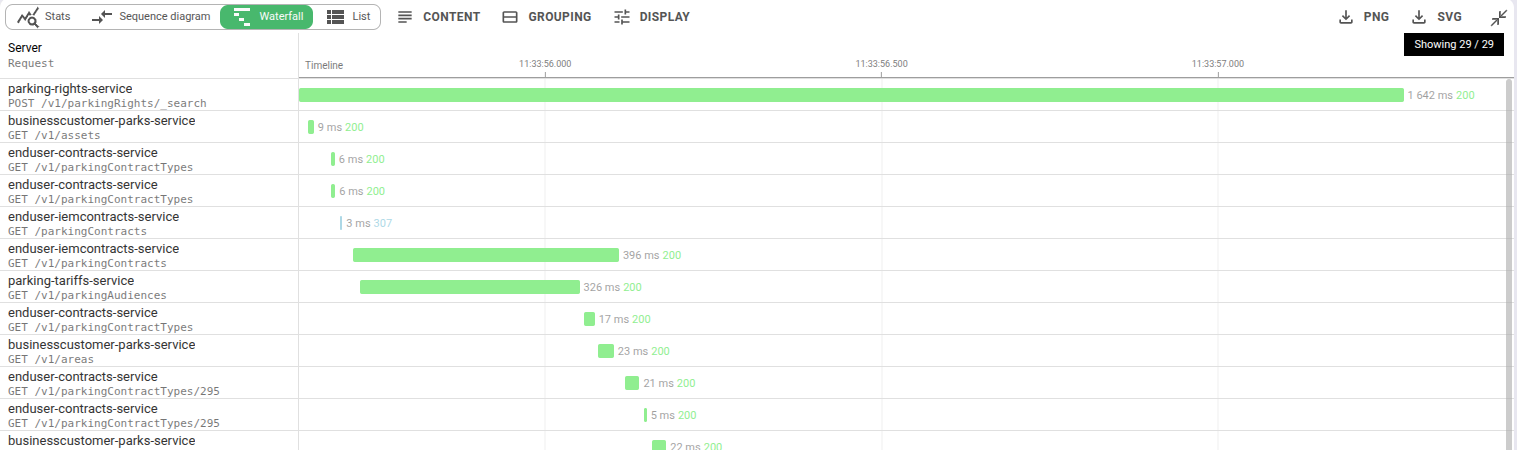
In the default flat mode, each communication occupies its own row, ordered by start time. A vertical timeline runs across the top with labelled tick marks. Every bar is coloured by status: green for success, amber for client errors, red for server errors, grey for PostgreSQL.
This is the most direct way to read a sequence of calls. You see the shape of the traffic: whether requests are evenly spaced or bursty, whether responses come back quickly or trail off. Hovering over a bar shows a tooltip with the source, destination, request text, status code, and duration.
Lane grouping
The flat view tells you what happened. Lane grouping tells you who was talking to whom, and how much in parallel.
Enable Group by lane in the Grouping menu. The waterfall reorganises into lanes - one row per unique
(client, identification, server) combination. When two communications on the same lane overlap in time, they stack vertically within the lane.
When they do not overlap, they share the same horizontal track.
The result is a visual fingerprint of the concurrency behaviour between each pair of endpoints:
- A lane with a single horizontal track is fully serial.
- A lane with many stacked bars is heavily parallel.
- Bulges at a particular moment in time reveal a burst of concurrent requests.
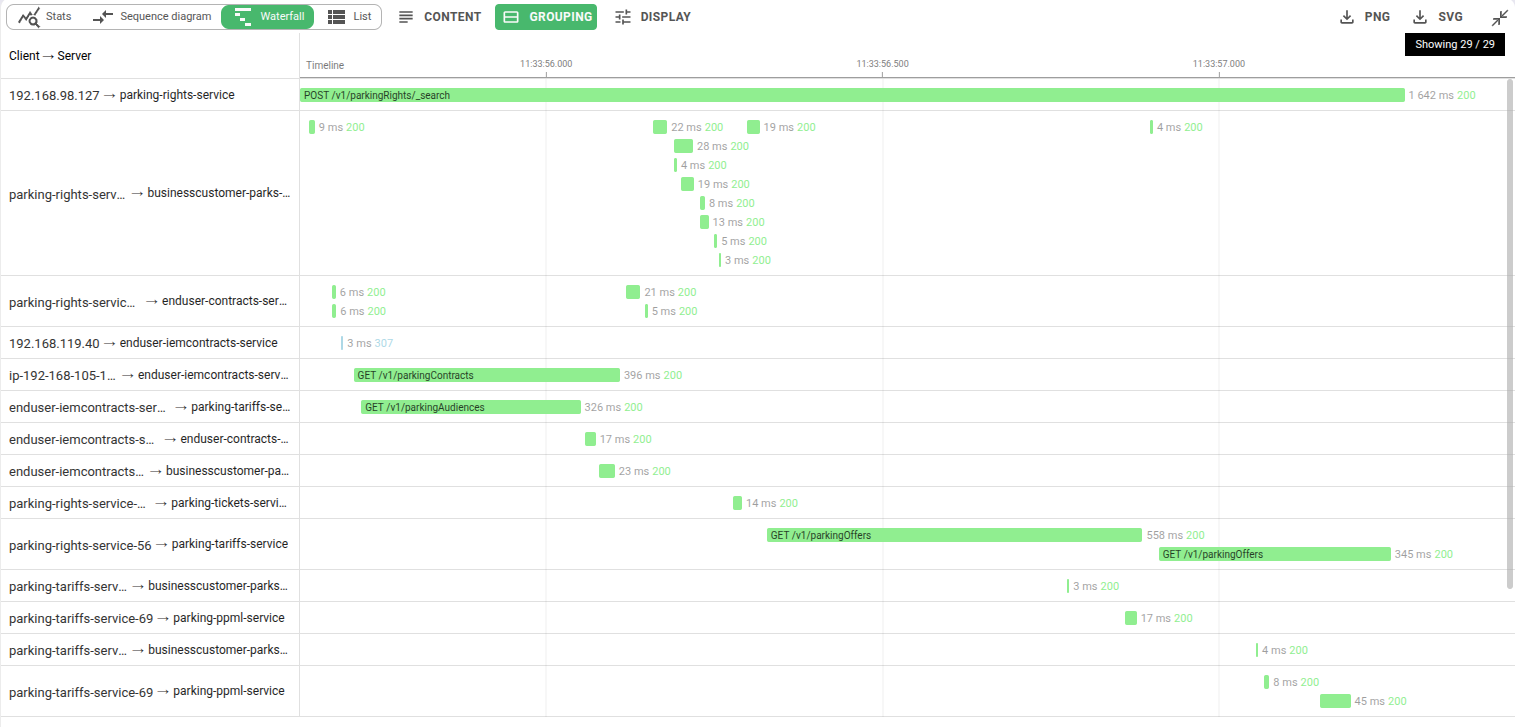
This makes it straightforward to answer questions like: how many parallel connections does this client maintain to that server? or is this service pipelining requests or sending them serially? - without writing any query.
Merge replicas
With Merge replicas enabled, servers matching your configured merge patterns are grouped under their functional name. Multiple api-1, api-2, api-3 pods collapse into a single api lane. The merged name is shown in the left column instead of the individual IP or hostname.
Hide reverse proxies
With Hide reverse proxies enabled, the originating client IP (src.origin) is used instead of the direct source IP, collapsing proxy hops.
When a gateway fans out to many backends, you see the real client-to-backend lanes instead of the gateway-to-backend ones.
Both modifiers are only available when lane grouping is active.
They respect the merge and compacting patterns already configured in your team or personal settings - the same ones used by the sequence diagram -
so you do not need to set them up twice.
Request text inside bars
In lane grouping mode, the request text - method + URI for HTTP, SQL command for PostgreSQL, or the template when the Template option is selected - is overlaid directly inside each bar when the bar is wide enough to show it legibly. For narrow bars, the text appears in the hover tooltip instead.
This lets you read what a request was without clicking into it, which is especially useful when comparing many parallel lanes.
Display features
Content
The left column has configurable content:
- Server only
- Client -> Server
- Identification -> Server
Resizable left column
The left column - showing server, client, or identity labels depending on the Content option - is resizable.
Drag the vertical divider in the header to widen or narrow it.
Adaptive timeline graduation
The timeline header adjusts its tick density automatically based on the available panel width.
Compact mode
Compact mode reduces the row height to fit more requests on the screen. It is useful when you have a lot of requests and want to see more details at once.
Auto-scale timeline
Auto-scale timeline adjusts the time range to fit the visible requests. It is useful when you're navigating across a long time range.
Export
PNG and SVG export buttons in the options bar let you save the current waterfall view. The SVG format can be edited in vector tools like Inkscape for use in reports or architecture documentation.